Account-Einrichtung
After you’ve registered Zammad as an OAuth app in your Google Developer settings, you can begin connecting Gmail accounts to Zammad.
☠️ Zu aller erst ein Warnung! Der Abholprozess tut Dinge, die Sie ggf. nicht erwarten:
Gefahr
🚯 Zammad entfernt beim Abholen alle Emails des Email-Accounts.
Use the Keep Messages on Server setting to disable this behavior.
Warnung
📮 Zammad sendet automatische Antworten für jede Email die es importiert. (Das betrifft auch alte!)
Make sure to disable this behavior prior adding an email account, and to turn it back on once all your messages have been imported.
🚛 Migrate an Existing Email Channel
If you’ve already added your Google account as a regular email channel, you’ll have to convert it to a Google channel eventually: Google is planning to end support for simple password authentication in third-party email clients (like Zammad).
Please refer the Migrate from Email channel to Google channel guide.
Add a New Account
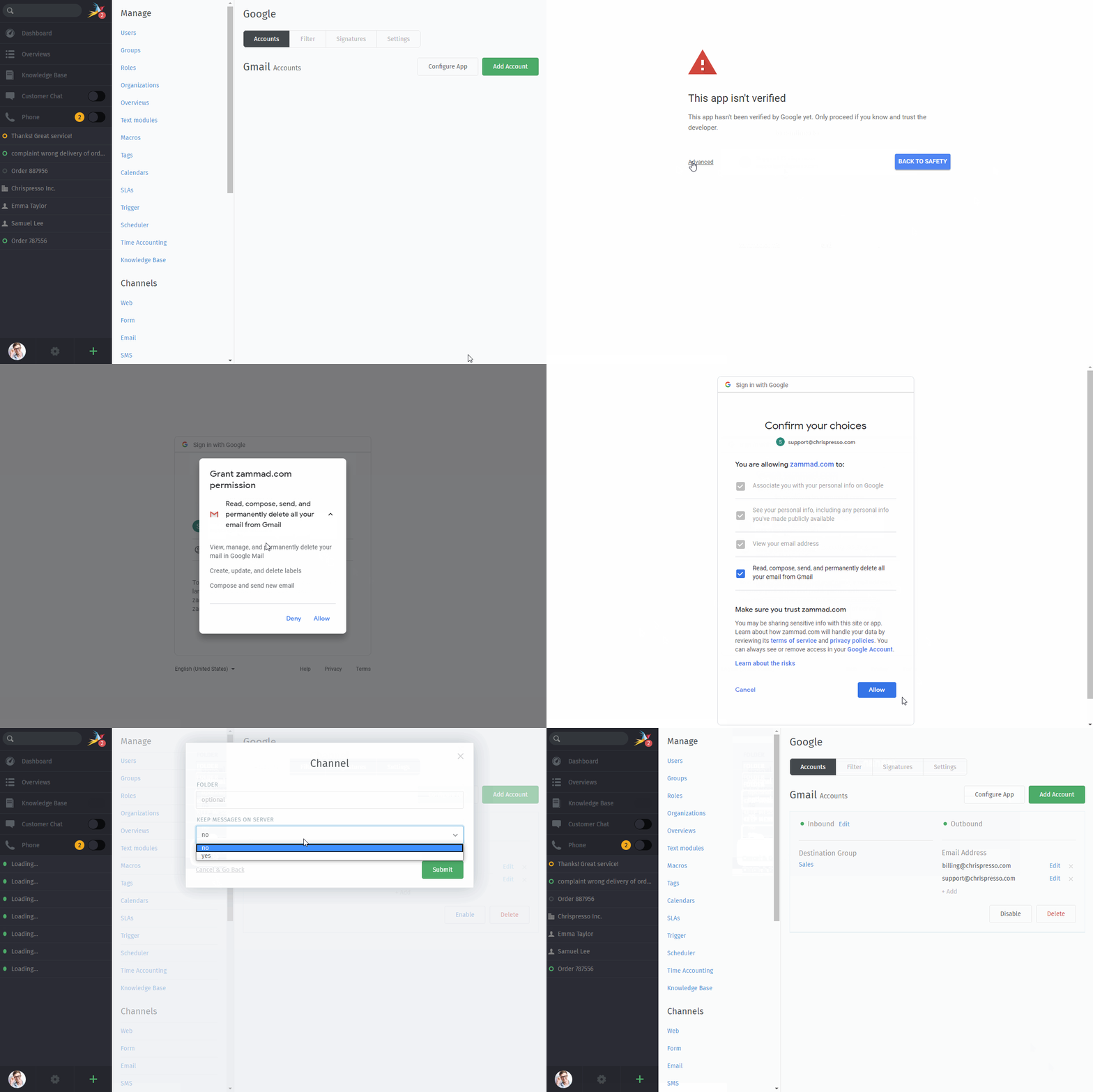
Click Add Account to connect your Gmail / G Suite accounts to Zammad. You will be redirected to a Google sign-in and confirmation page.
Any aliases registered in your Gmail settings will be imported automatically.
Bemerkung
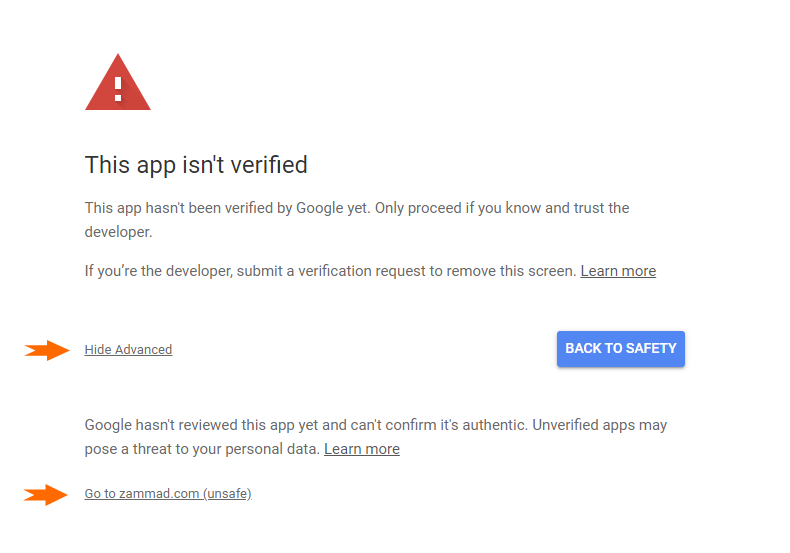
Google has a stringent verification process to protect users from third-party websites that use OAuth to access their data. Since you are the third-party website here, you can safely ignore this warning.
Channel
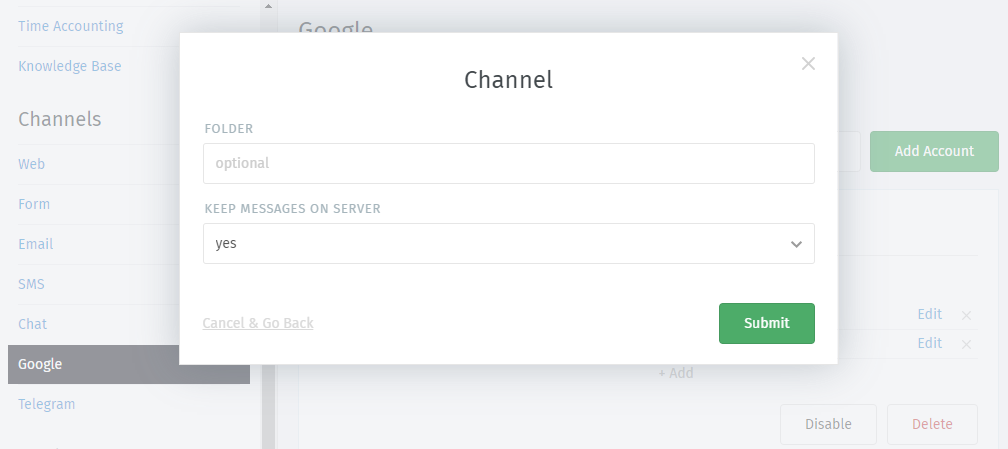
- Ordner
Specify which folder (or label) to fetch from, or leave empty to fetch from
INBOX.If specifying a nested folder, be sure to use the full path; e.g.,
Inquiries/Tech-Support.- Nachrichten auf Server belassen
Spezifizieren Sie, was mit den Emails nach Zammads Import passieren soll:
neinZammad entfernt alle importierten NachrichtenjaZammad markiert alle importierten Nachrichten als gelesen(Mit dieser Einstellung importiert Zammad ausschließlich ungelesene Nachrichten. Das bedeutet, dass Zammad Nachrichten übersieht, wenn das Postfach extern verändert wird.)
Bemerkung
🤔 Warum löscht Zammad standardmäßig Nachrichten?
Wenn Sie Ihre Postfach niemals bereinigen, können unter Umständen Speicherplatz-Limits erreicht werden und Ihr Email-Server lehnt eingehende Emails ab. Die meisten Zammad-Nutzer schauen für gewöhnlich nach dem Aufsetzen nicht mehr hinein und verlassen sich damit auf das Aufräumen durch Zammad.
If you choose yes here, remember that it’s your responsibility to clean out your inbox from time to time to keep it below its storage limit.
- Nach dem Hinzufügen des Accounts
After successfully adding the Microsoft 365 mail account, you can adjust the default group Zammad is going to assign incoming new tickets to.
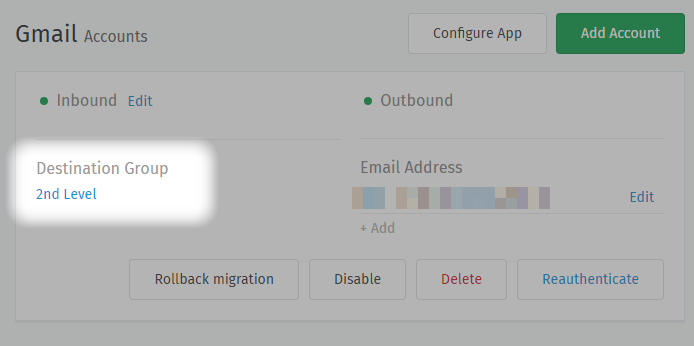
Only active groups will be displayed.
Changing this setting will not reassign existing tickets to the new group.
Hinweis
🤓 Vergessen Sie nicht die ausgehende Email-Adresse zu setzen
In Zammad entscheidet jede Gruppe, welche Email-Adresse für den ausgehenden Versand verwendet wird. Eingehende Gruppen haben hierauf technisch keinen Einfluss.
Stellen Sie aus diesem Grund sicher, dass Sie auch die Gruppen-Einstellungen anpassen.
Fehlerbehebung
- I successfully added my account, but Zammad isn’t fetching new email
If you specified a custom folder/label to fetch from, are you sure incoming mail is arriving in that folder?