Macros
Zammad’s macro feature lets you pre-define ticket changes which can be applied
with just a click. When you or your agents apply the same changes to many
tickets repeatedly, you can bundle those changes in a macro to apply them
by executing it. To add or edit macros in Zammad’s admin settings under
Manage > Macros, the permission admin.macro is required. For action- or
time-based automation, have a look at Zammad’s triggers and
schedulers.
Macros can be executed in two ways:
In the ticket detail view via the ^ section of the
Updatebutton.As bulk action for multiple tickets inside an overview or the detailed search (bulk action via field selection or via drag & drop).
Manage Macros
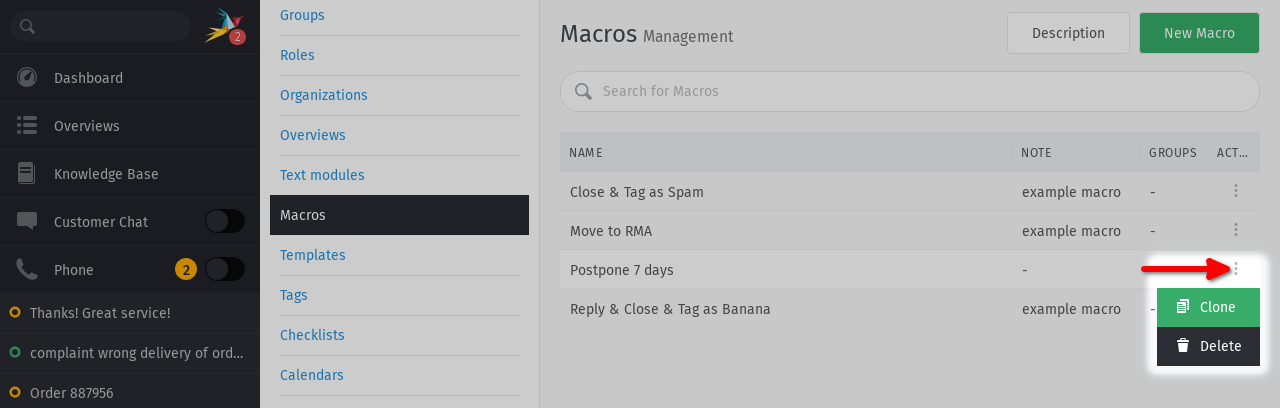
Edit your macros by clicking on it. You can delete or clone existing macros
by using the ︙ action menu. When cloning a macro, make sure to click Submit
for the duplicate to be created.
Configuration
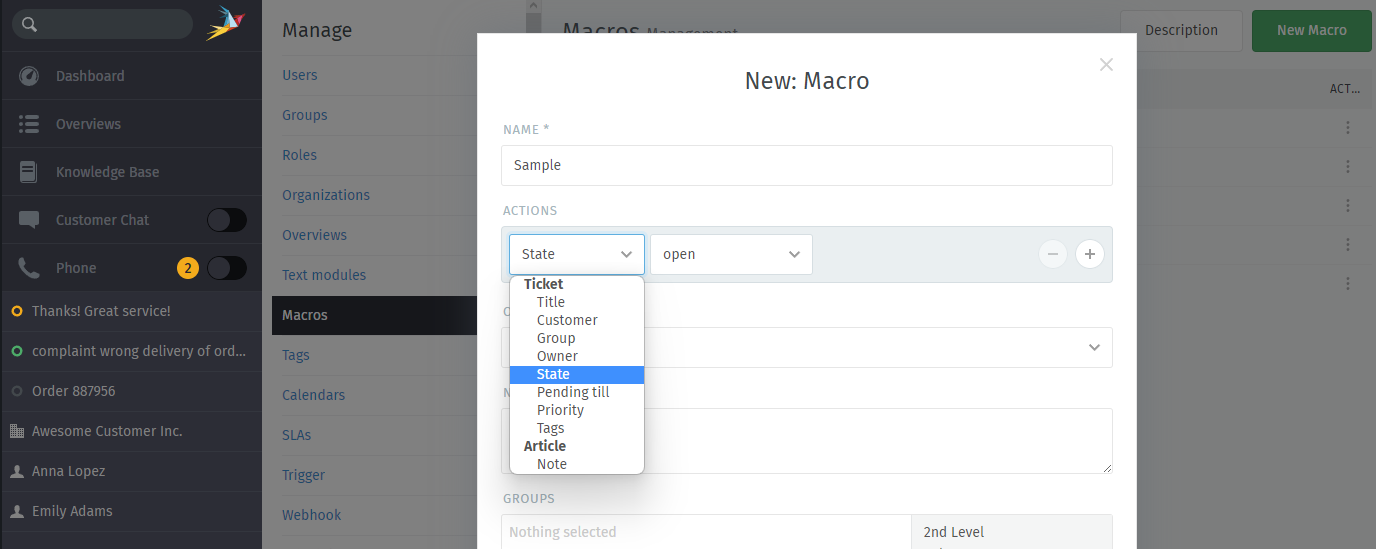
Macros are a collection of actions (changes to a ticket). You can add as many actions to a macro as you want. The configuration is the same, whether you’re creating a new macro or editing an existing one.
- Actions
You can create actions to:
Set ticket attributes (priority, state, group, etc.)
Add new notes to a ticket
Send a notification
Run an AI agent
There are no actions for sending a reply to the customer.
Note
Unlike triggers, the scheduler, and text modules, macro actions do not support the use of variables.
Warning
If the ticket is missing a required attribute and the macro doesn’t set it, then no actions will be applied.
- Once completed
After running this macro, should Zammad remain on the current tab, close it or automatically switch to the next ticket? This does not apply when executing macros in bulk.
- Note
What should other Zammad admins know about this macro? Only visible for admins.
- Groups
Which groups are allowed to use this macro?
- Active
Choose inactive to disable this macro without deleting it.
Examples
Mark Ticket as Spam
If you deal with a lot of spam, you can set up a macro that applies the following changes to a ticket:
State closed
Tags add spam
Owner current user

Tip
Run this macro in a Scheduler to periodically clean up unwanted tickets.
Postpone Ticket for a Fixed Time
Setting a ticket’s state to pending reminder normally requires two steps: first select the state, then select a date. You can bundle this into a macro to always set a reminder for the same fixed amount of time (for example, seven days later):
Note Postponing ticket for 7 days. (internal visibility)
State pending reminder
Pending Till relative 7 Day(s)
Owner current user
