Overviews
Provide overviews to your agents and customers in Zammad’s admin settings under
Manage > Overviews. The permission admin.overview is required.
Overviews can be used as a kind of worklist of tasks that the agent is supposed
to work on. You can add new overviews, edit or delete them. They can be assigned
to roles and restricted to specific users. Overviews only show tickets for which
the user has at least viewing permission.
Warning
Please note that overviews can cause performance issues leading to no longer or less often refreshing overviews!
Whenever possible, try to use the same overviews for as many agents and groups as possible to keep the number of overviews low. For best results, you should use a maximum of 15-20 overviews. Please note that any overview will only show a maximum of 2100 elements.
The following attributes can be set when creating or editing overviews.
- Available for the following roles / Restrict to only the following users
Define roles that are supposed to see and use the overview in question.
If your overview is rather specific for a sub group of users of your role, use the Restrict to only the following users option to further restrict the visibility of the overview to defined users.
The setting “available for the following roles” is mandatory.
- Only available for users with shared organization
This is important if the available role is a customer. Whether you select “Yes” or “No” depends on whether you want one of your customer’s contacts to see all of their organization’s tickets.
Hint
Shared organization is a setting in the organization management. See Organizations for more information.
“Users” also refers to the customer role in this case.
- Only available for users which are absence replacements for other users
This selection refers to the setting in the user preferences (Avatar > Profile > Out of office). If this option is checked, this overview is only displayed for users who have been set as a substitution. See Out of Office section (user documentation) for more details.
For example: Agent A is on vacation and Agent B will take care of his tickets. Then an overview can be set up, which only shows Agent B all new tickets from Agent A for this period of time, without having to search for them separately.
- Conditions for shown tickets
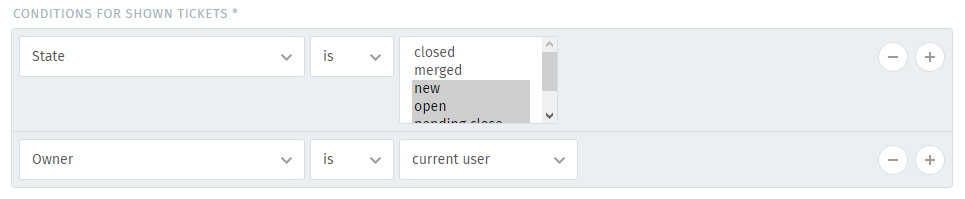
Which tickets should be shown in this overview? The conditions can be seen like a filter. You can add more than one condition. In the preview you have the possibility to double check if your entry of the conditions makes sense by directly displaying tickets that match your filtering.
Hint
👋 Looking for more depth explanation on conditions? 🤓
Many condition settings in Zammad, no matter if in ticket scope or not, re-appear in several places of Zammad. For this reason we created a dedicated documentation section to avoid duplicate content.
Have a look at Object Conditions to learn even more! 🎉
- Attributes

Which attributes (column headers) shall be shown in the overview?
With this setting you can select the headlines of your overview. Depending on which information is important in this selection, it can be displayed individually. For this example “Unassigned and open”, the overview would look like this:
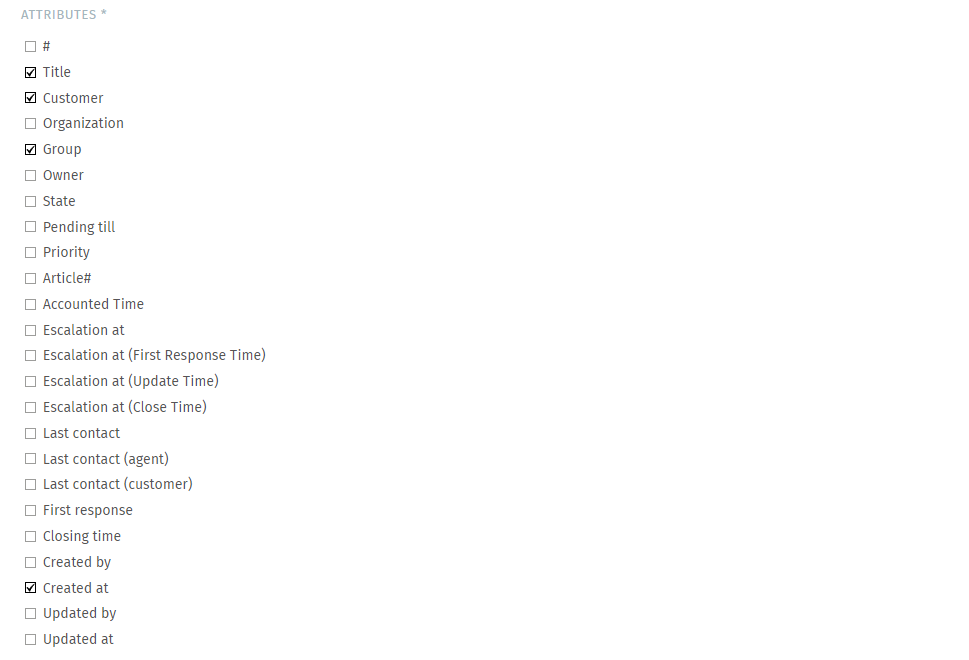
These settings can also be adjusted individually by admins at a later time (in the overview, top right: Options).
Note
Please note that overview column and sort settings are global settings which affect all users seeing those overviews.
- Sorting, Grouping and Active
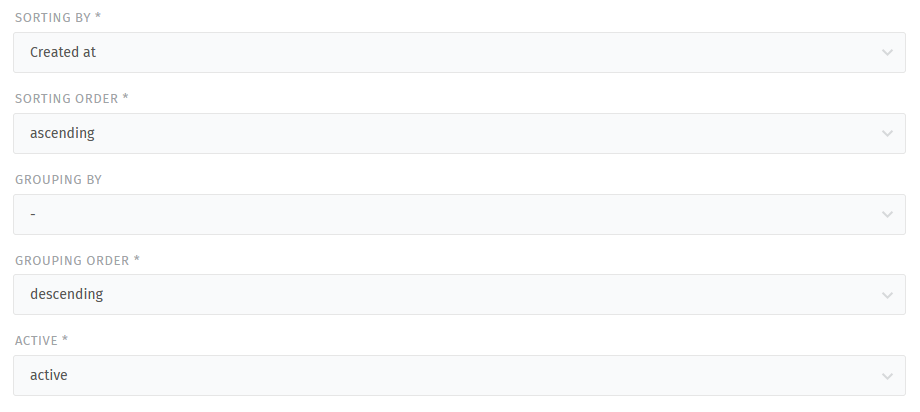
- Sorting by
In which order should the tickets be displayed? Choose the attribute you want to sort by.
- Sorting order
The direction of the sorting (ascending or descending).
- Grouping by
Should the tickets be grouped by a specific attribute within the list?
- Grouping order
The direction of the grouping.
- Active
Should the overview be active or not? Rather than deleting an overview entirely, you can set it to inactive to make it unavailable to your users.
Note
Users can define their own overview order. Renaming or reordering overviews has no effect on custom orders!
You can learn more about this setting in the user documentation.