Time Accounting
If you want to know how much time you need for each project or ticket,
enable the time accounting by turning on the switch on top of the
page. This allows agents to log their needed time on a per-ticket basis.
To configure it under Manage > Time Accounting, the permission
admin.time_accounting is required.
Settings
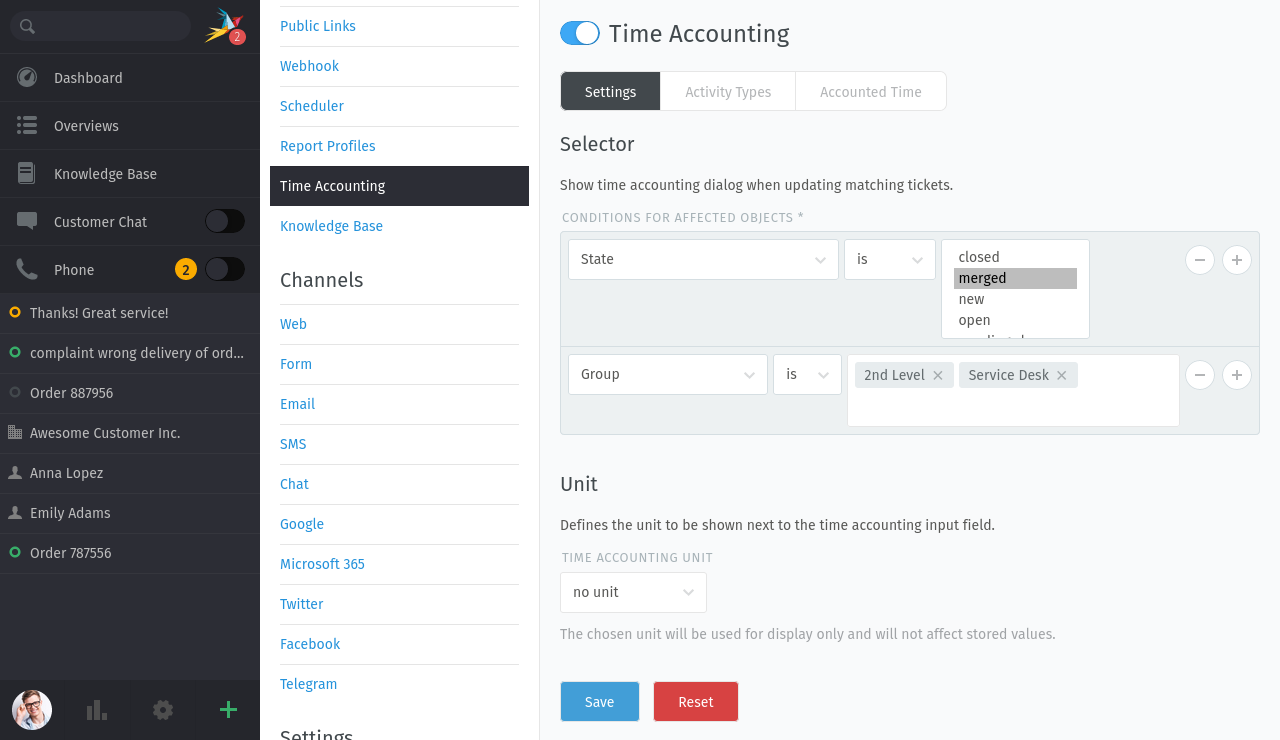
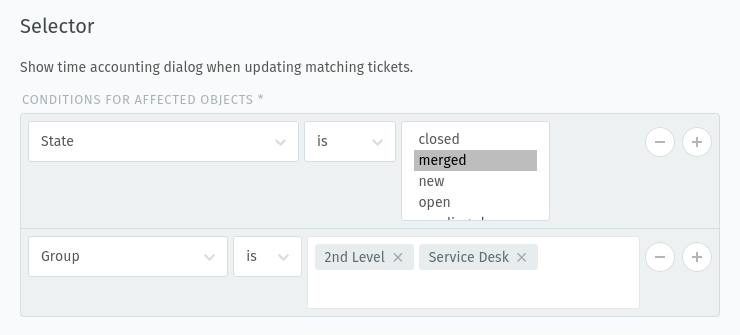
Zammad’s time accounting is based on conditions to check if a ticket is considered for being relevant for time accounting or not. Add your condition in the Selector section.
Hint
👋 Looking for more depth explanation on conditions? 🤓
Many condition settings in Zammad, no matter if in ticket scope or not, re-appear in several places of Zammad. For this reason we created a dedicated documentation section to avoid duplicate content.
Have a look at Object Conditions to learn even more! 🎉
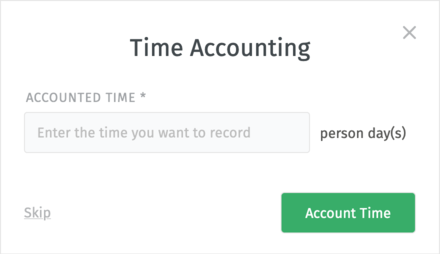
If a ticket is relevant, Zammad will request the agent to provide the time which was needed to process the current ticket step. In order for Zammad to bring up the time accounting dialog to an agent, the agent has to update the ticket together with an article of any type. The adding of an article is mandatory to invoke the time accounting dialog. However, the time accounting dialog is not mandatory and can be canceled by your agents. You cannot enforce the time accounting. When a ticket is no longer considered for the time accounting, the already accounted time will be preserved.
Tip
The selector applies to the ticket state before any attribute changes have been saved. That means if your agent is e.g. going to close a ticket alongside writing an article, the ticket selector has to match the ticket state before closing for the time accounting dialog to appear.
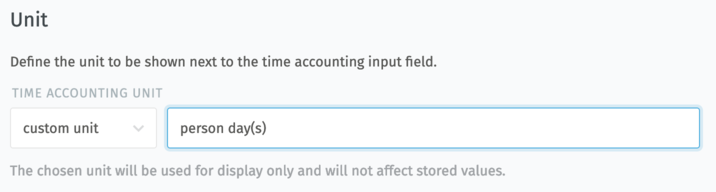
The accounted time is always a unitless number. However, it is possible to show a specific unit in the Unit section, which provides several options:
- no unit
Default behavior, no unit is shown next to the time value.
- hour(s)
Shows
hour(s)as the unit next to the time value.- quarter-hour(s)
Shows
quarter-hour(s)as the unit next to the time value.- minute(s)
Shows
minute(s)as the unit next to the time value.- custom unit
Shows a custom unit that can be specified as free input.
Warning
The unit is only displayed to make it easier for agents to account their time! No numerical transformation will be applied to the values, not even if you change the unit. It is just to indicate in which unit agents should account their time.
Activity Types
Activity Types can be used to group the different ticket time accounting entries together. For example, entries that are relevant to a “Billing” type.
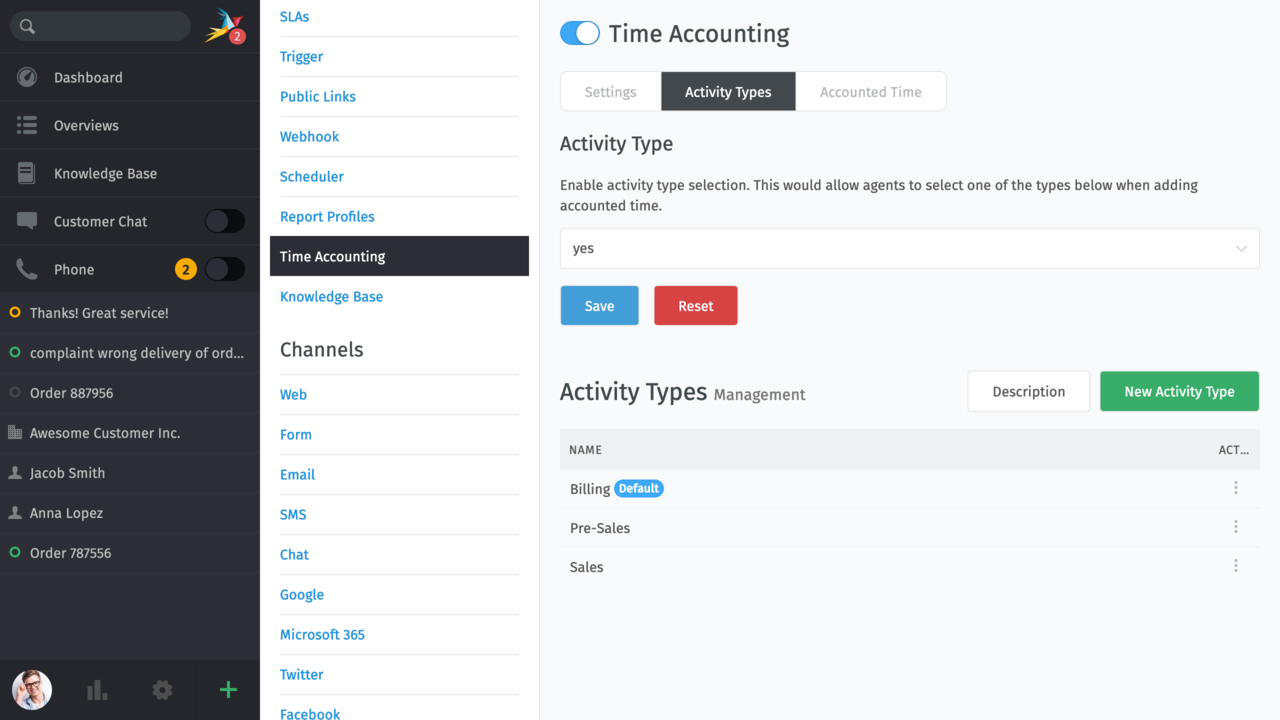
When you enable the recording of the Activity Type, the agents will be able to select a type from this list.
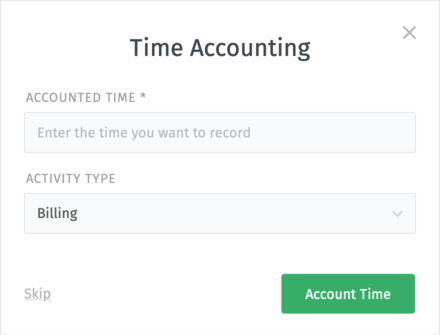
Additionally, a column with an associated activity type will be rendered for an entry in the Activity table under the Accounted Time tab.
You can manage available activity types in this screen like any other Zammad object. Only active types will be available for the selection when recording new times. If an activity type has accounted time, it is still displayed in tickets and included in the accounted time overview.
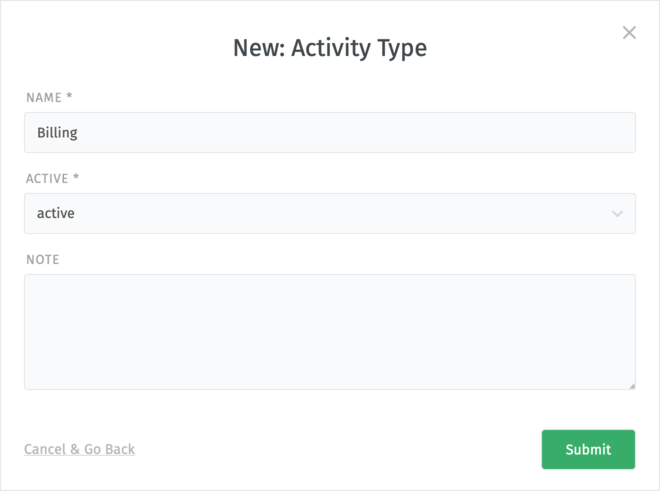
Activity types can be set as default, and in that case they will be pre-selected for the agents when they are asked to account their time. It is also possible to unset default activity type, in which case no type will be pre-selected and the agents can make their choice.
Accounted Time
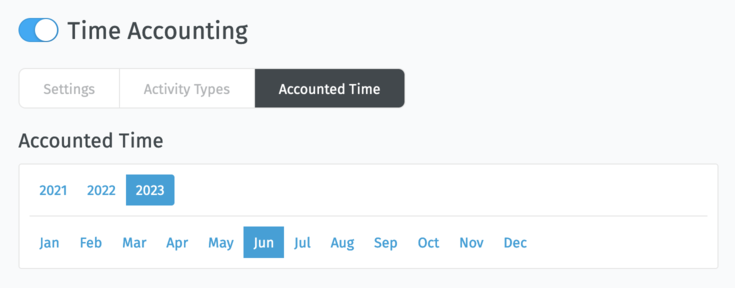
Under the Accounted Time tab, Zammad provides a section for reviewing all accounted times for your tickets. Accounted times are displayed per years and months.
If you have tickets that are overlapping several months, you can differentiate by time units and time units total (e.g. to allow partial billing) in the downloaded file.
- Select the right month
Usually you want to bill accounted time of other months than the current one. Just select the relevant year and month to receive the accounted times and ticket information.
- Tickets and their accounted time
Zammad allows you to receive the accounted information just like you need them. For this you currently have four options to review and also download the relevant data as CSV.
To download the CSV data, use the download button right next to each heading (e.g. “Ticket”).
This can also be automated with API calls.
Hint
Only the first 20 entries are shown for each table. To see all of them, simply download the records in CSV.
- Activity
This filter works similar to the ticket filter, with one exception: You’ll find each individual time accounting step of your agents. This is what you’d also see in the ticket’s history before Zammad 5.2.
In this list you’ll see the following ticket information:
Number
Title
Customer
Organization of customer (if applicable)
Agent that accounted the time
Time units accounted in the current activity
Activity type (if enabled)
Created at
- Ticket
This filter contains all relevant tickets from the selected month.
In this list you’ll see the following ticket information:
Number
Title
Customer
Organization of customer (if applicable)
Agent currently assigned (ticket owner)
Time units accounted in the current month
Time units total (time accounted during ticket life)
Created at
Closed at (if applicable)
- Customer
This provides you a per user filter on accounted time units. Each user has a total of time accounted in the current month (over all applicable tickets).
In this list you’ll see the following ticket information:
Customer
Organization of customer (if applicable)
Time units accounted in the current month
- Organization
This provides a list of all organizations where customers have caused accounted time in that month.
You can also see entries for customers that are part of a primary organization. Users without an organization can be found in the Customer filter.