Users
Zammad creates a user for everyone who communicates with the system. That means all customers get their own accounts, even if they just communicate through a channel with Zammad. Users can be managed individually via UI, via API or even synchronized with third-party services.
To manage users, you need to have admin.user permission.
Note
Be aware that agents can create, view and change customer users as well, for example:
While creating a new ticket
When opening a user’s detail page in the navigation sidebar by clicking on an avatar.
Read on for a description of the individual user attributes below. The different ways of managing users are described in separate pages:
Reference Guide: User Details
Most of the attributes you can set on user accounts are self-explanatory. The ones that aren’t are described below.

User details can be set in the New/Edit User dialog.
- 👤 Login
A user’s email and login may differ, but either one can be used to sign in.
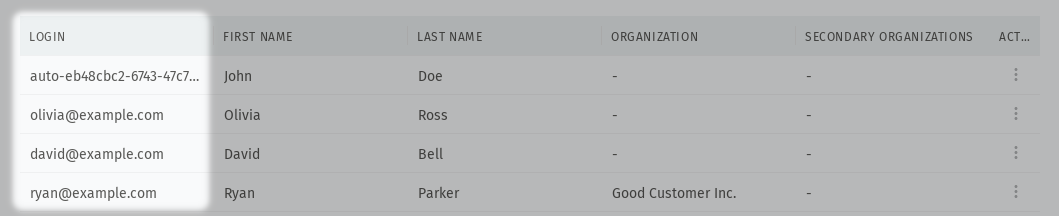
User logins are not shown in the New/Edit User dialog, but they are visible from the user overview.
This attribute cannot be set via UI. Instead, use the Zammad console, the REST API, or CSV import.
- 🔑 Password
Yes, administrators really do have the power to change other users’ passwords.
- 🏢 Organization
Organizations are a way to group customers together (usually, members of the same company). This allows you to do things like view all tickets for that company or set up special Trigger that fire only for those customers.
Please note that the organization has to exist before it can be assigned. To add one, go to Manage > Organizations in the admin settings.
- 🏤 Secondary Organizations
This option allows you to assign more organizations, in addition to the user’s primary organization.
Secondary organizations behave the same like the primary ones with one exception: Secondaries are not as highlighted like their primaries.
Listings for all organizational tickets are not affected by this. Zammad will mix primary and secondary organization tickets together.
Warning
While the number of secondary organizations is not limited directly, you may want to keep this to a reasonable number of organizations. 30-40 organizations at maximum should be good enough.
- 👑 VIP
This flag is a way for your team to indicate high-status customers. Just as with organizations, you can set up special Trigger, Scheduler jobs, SLAs, and Overviews just for VIPs.

VIPs are displayed with a crown above their avatars.
- 📑 Note
Notes are visible to all staff members, including agents.
Hint
Are you using the Note field to keep track of specific user individual information? Consider creating a separate field for this! Learn more in the Objects section.
- ▶️ Active
Inactive users aren’t able to login anymore. However, they can still be used in different places in Zammad (e.g. as ticket customer, in conditions in triggers and schedulers).
What’s the difference between deactivating and deleting a user?
There is no way to restore a deleted user; inactive users can be reactivated at any time.
When a user is deleted, all their associated tickets are lost, as well; deactivating a user keeps all associated tickets intact.
Inactive users still appear in search results and can be used as a ticket customer:
- Roles
The Roles define what users can do in the system. If you need to grant someone privileges to edit the knowledge base or access parts of the admin settings, roles are the answer.
- Group Permissions
The Group Permissions define which tickets an agent can work with. If an agent is not receiving notifications for incoming tickets or can’t be assigned to a ticket, you should have a look at the group permissions.
Please note that the visibility of the group permission table depends on the role selection. It only shows up, if the selected role has the
ticket.agentpermission and when there is more than one active group in the system.
Top: User’s roles decide what kind of actions they can perform and which groups they belong to. Bottom: Group assignments can alternately be set on a per-user basis.
