SSL Certificates
Zammad offers the possibility to upload custom certificates and custom Certificate Authority (CA) certificates. This can be useful if you want to connect Zammad the secure way to other systems which are using custom certificates.
An example use case might be: You have an internal LDAP server that is not accessible from the internet, and you want a SSL-encrypted connection, using a custom certificate.
Prerequisites
You should have an existing custom certificate file and/or a custom CA
certificate file, which you want to add to Zammad. As filetype .crt is
supported and the certificate format has to be PEM (Base64 ASCII).
Hint
When you import a custom CA certificate, all certificates generated with this are trusted. This can be useful if you have more than one system/certificate you want to connect to and the certificates are issued from the same custom CA.
Add a Certificate
To add a custom certificate or a custom CA certificate, head over to
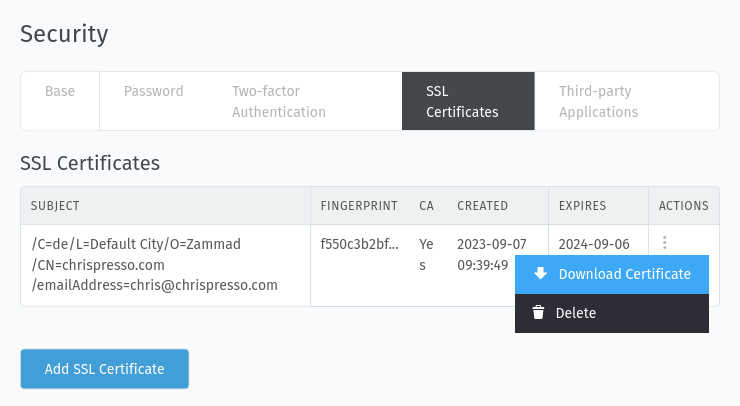
Settings > Security > SSL Certificates in the admin settings. Here you can
find a Add SSL Certificate button. In the dialog you can either select a
certificate file or paste the content of the certificate:
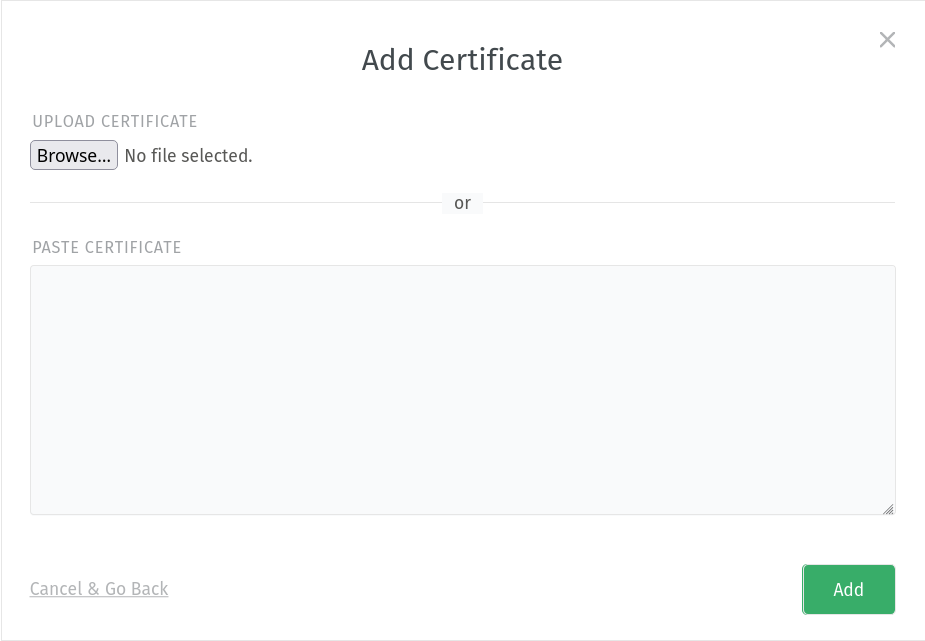
After selecting a file or pasting the content of the certificate, click on the
Add button to finally upload it to Zammad. Then, the certificates are
immediately effective, no restart is required.
Note
Please note that only single certificate files are supported. That means if you want to import a certificate / CA certificate, it must contain only one certificate.
Certificate Overview
After you added a certificate, you can see a table with information for each added certificate:
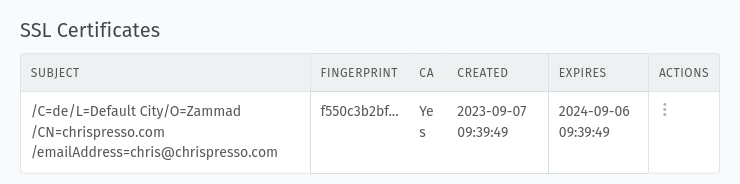
Here you can download the certificate or delete it, if you don’t need it anymore.
Delete Certificates
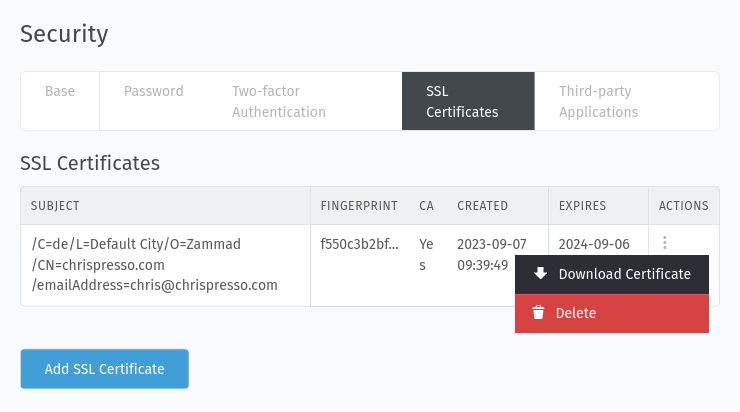
If you want to delete a specific certificate, you can do it by clicking on the menu in the actions column and selecting Delete:
Download Certificates
If you want to download your certificates, you can do this as well via corresponding action buttons.