Templates
Templates allow you to create tickets at a rapid speed by pre-defining a
ticket template for recurring tickets. Manage templates in Zammad’s admin
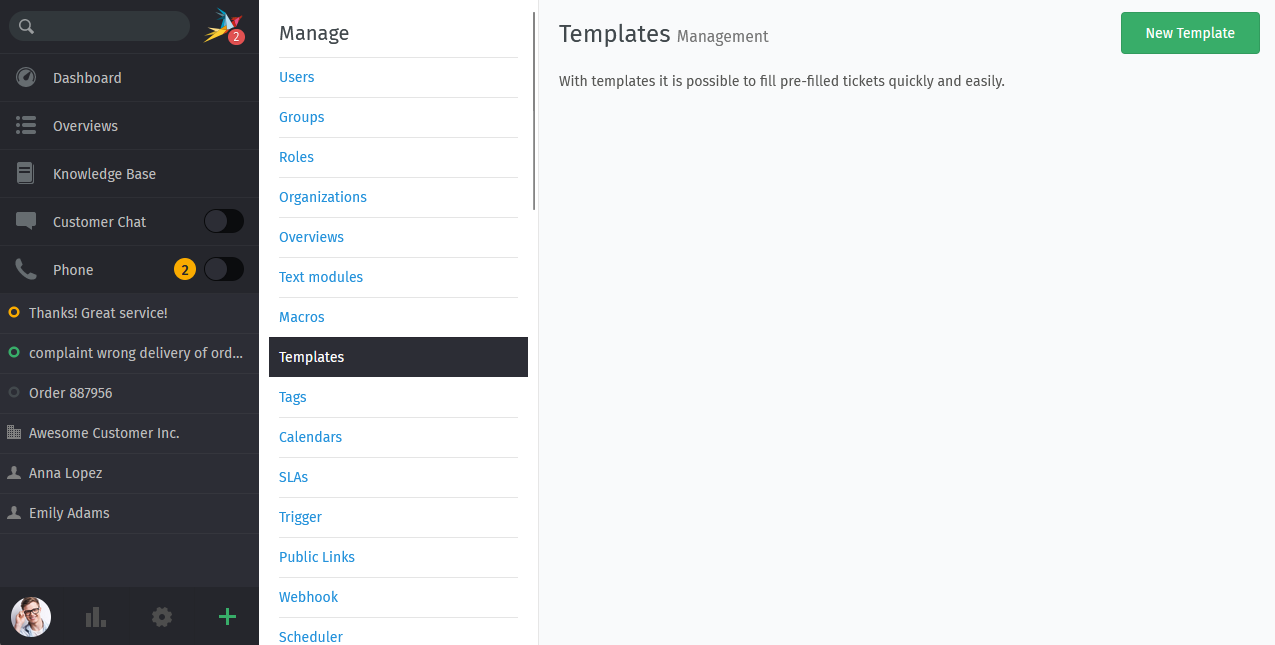
settings under Manage > Templates with the admin.template permission.
Warning
Please note that ticket templates do not allow the use of variables.
Hint
Applying a template never overwrites fields that already contain values, no matter how they were filled. Zammad only fills the empty fields that the template provides. Learn more about applying templates in our user documentation.
Managing templates
- Adding new template
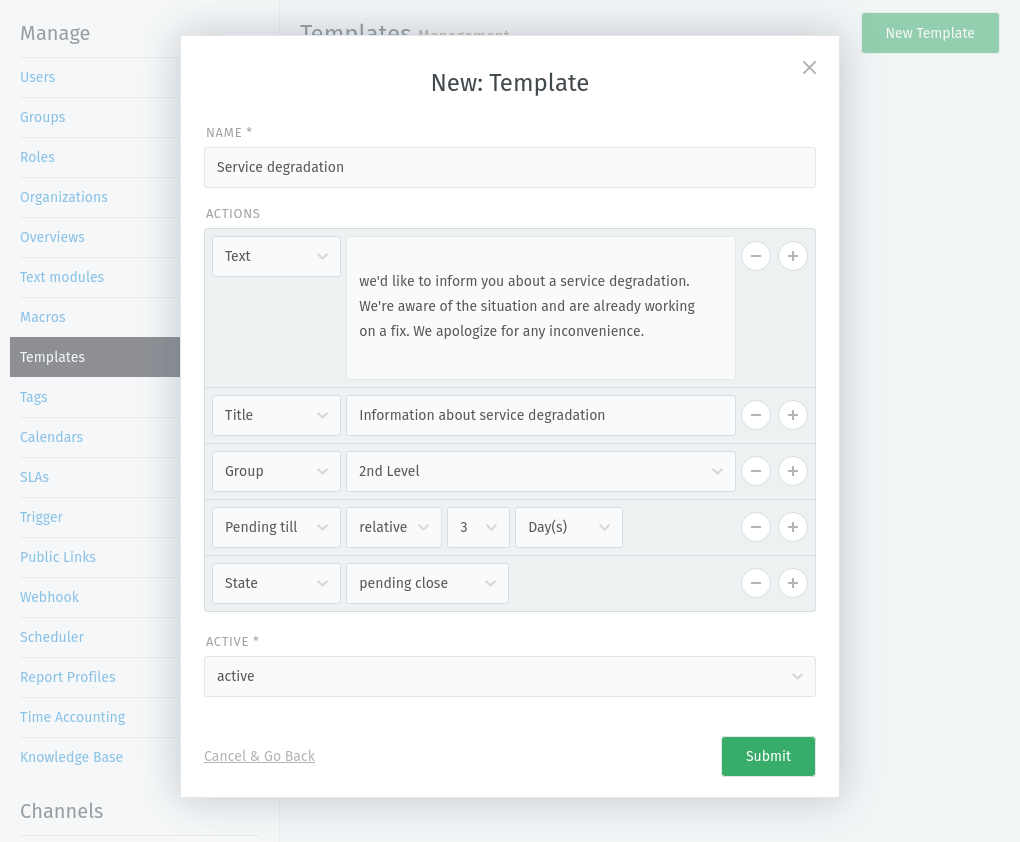
Use the New Template button to start creating a new template.
- Name
Select a meaningful template name. This name will be shown to your agents during ticket creation (within Select Template).
- Actions
Within actions, Zammad will provide all available ticket attributes. This allows you to create granular templates with the information you need.
- Active
Set any currently active ticket template to
inactiveif you don’t need it momentarily. This allows you to keep the template for e.g. seasonal reasons without providing it as an option to your agents.
- Editing templates
If your template no longer fits your need or contains errors, simply click on the template name to edit it.
- Cloning templates
Zammad allows you to clone existing templates and continue your new template from there.
To do so, use ⋮ in the Action column of the desired template in your list and choose Clone. A new template modal will open with attributes prefilled.
- Removing templates
If you no longer require a specific template, use ⋮ in the Action column in the list and choose Delete.
Be aware that the deletion is permanent.