Managing organizations via the admin panel
The “Organizations” panel provides tools to manually manage organization entries. See Reference Guide: Organization Details for help with the New/Edit Organization dialog.
- 👥 Creating and editing users
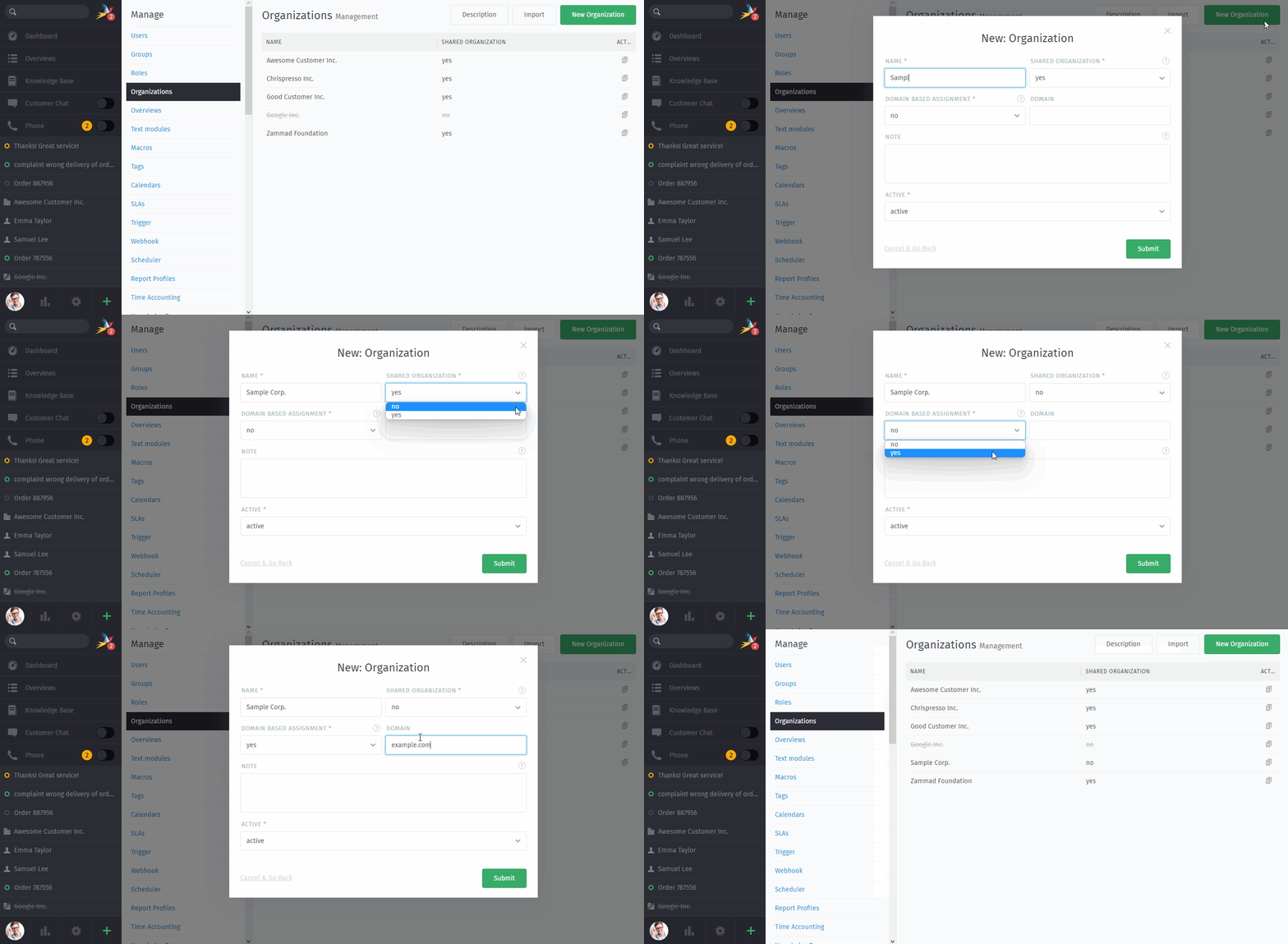
Click the New Organization button to open the New Organization dialog, or click on an existing organization to edit.
- 🗑️ Deleting organizations
Organizations currently can only be removed via data privacy by deleting the last organization member and then choose
yesfor Delete organization?.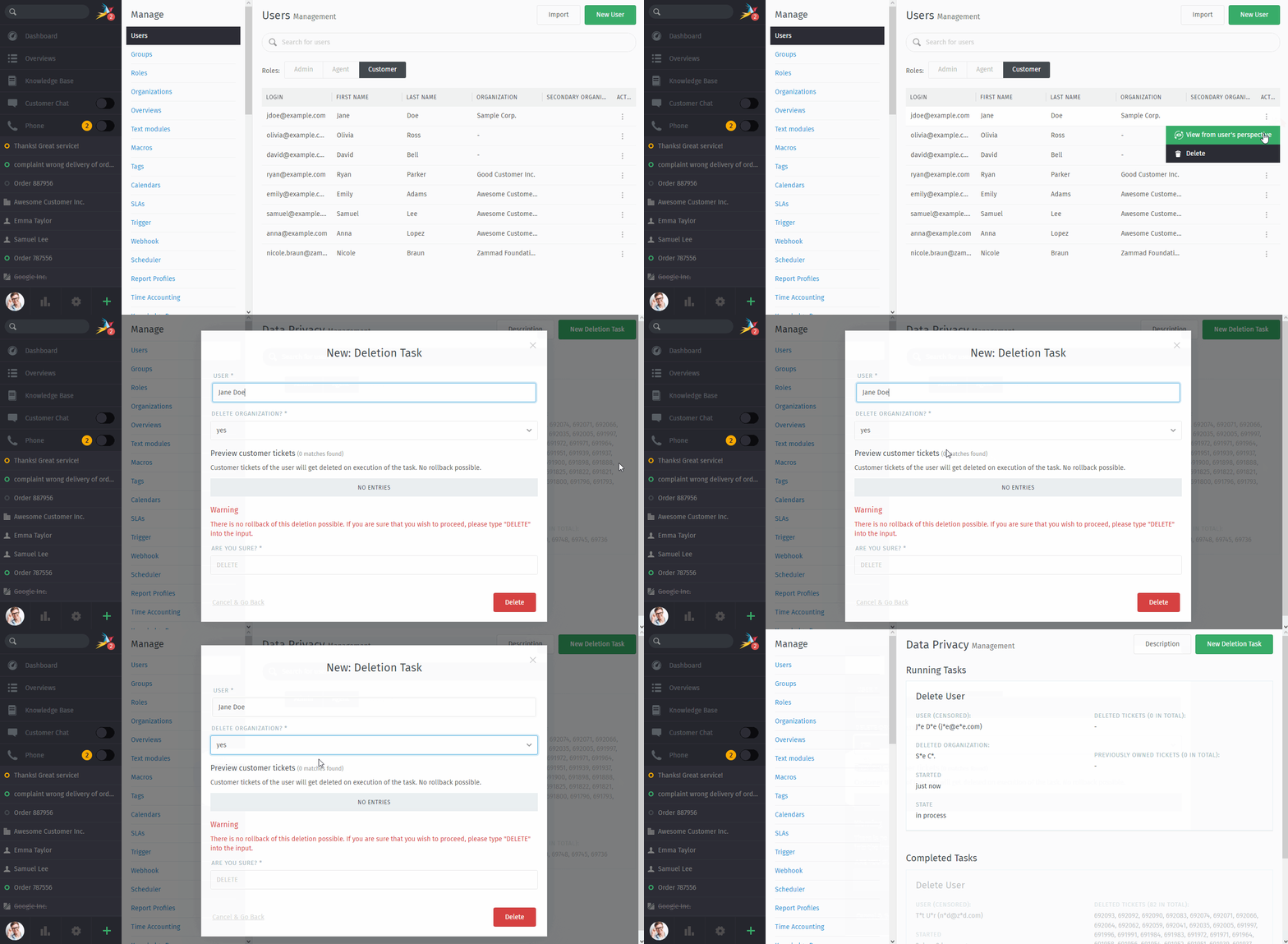
Use the ⋮ Actions menu to open the Delete User dialog.
Warning
💥 Deleting a customer destroys all their associated tickets!
To learn more, see Data Privacy.
Hint
Technically organization removal is possible via Zammad’s API, however, this only works in very specific situations. You may want to stick to data privacy as of now.