Списак задатака
Функција списка задатака омогућује оператерима да прате ток решавања тикета. Подразумевано је укључена и приказана је под посебним језичком у траци са десне стране детаљног приказа тикета (погледајте овде за изглед из перспективе оператера). За управљање функцијом списка задатака у Zammad администраторским подешавањима под Управљање > Спискови задатака потребна вам је дозвола admin.checklist.

Употреба
За укључивање/искључивање функције, једноставно пребаците прекидач под називом Укључи спискове задатака при врху стране.
Опционо можете додати један или више шаблона са предефинисаним задацима. Да бисте то урадили, кликните на дугме Нови шаблон списка задатака и одредите наслов списка и задатке. По слању форме, шаблон се може користити у тикетима.
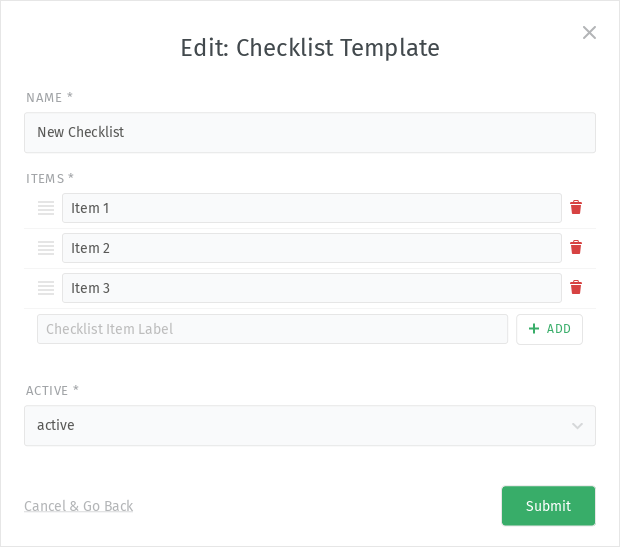
За клонирање или брисање шаблона употребите дугме ︙ и изаберите одговарајућу радњу. За уређивање шаблона, једноставно кликните на назив шаблона. Ово ће отворити дијалог где можете уредити списак и његове задатке (додати, променити назив, редослед, уклонити их) и поставити комплетан шаблон на укључено/искључено.
Напомене
Могуће је додати само један списак задатака по тикету.
Не постоји посебна дозвола за оператере за функцију списка задатака. Можете је укључити или искључити и опционо обезбедити шаблоне спискова задатака.
Уколико оператер има приступ тикету, имаће приступ и списку задатака.
Уколико оператер има само дозволу прегледа тикета, списак задатака ће бити приказан у режиму читања.
Клијенти немају приступ списковима задатака и неће моћи да их виде.
Оператер увек може да преиначи и измени списак задатака, чак је и брисање могуће. Ово се такође односи на спискове задатака који су додати на основу шаблона.
Спискови задатака су тренутно одвојена функција. То значи да не можете приступити задацима или њиховом стању са других места у Zammad-у као што су окидачи или радни токови.