Managing Users via Admin Settings
To manage users via UI under Manage > Users, you need to have the admin.user
permission. See Референтни водич: Кориснички детаљи for help with the individual user
attributes.
- Creating and editing users
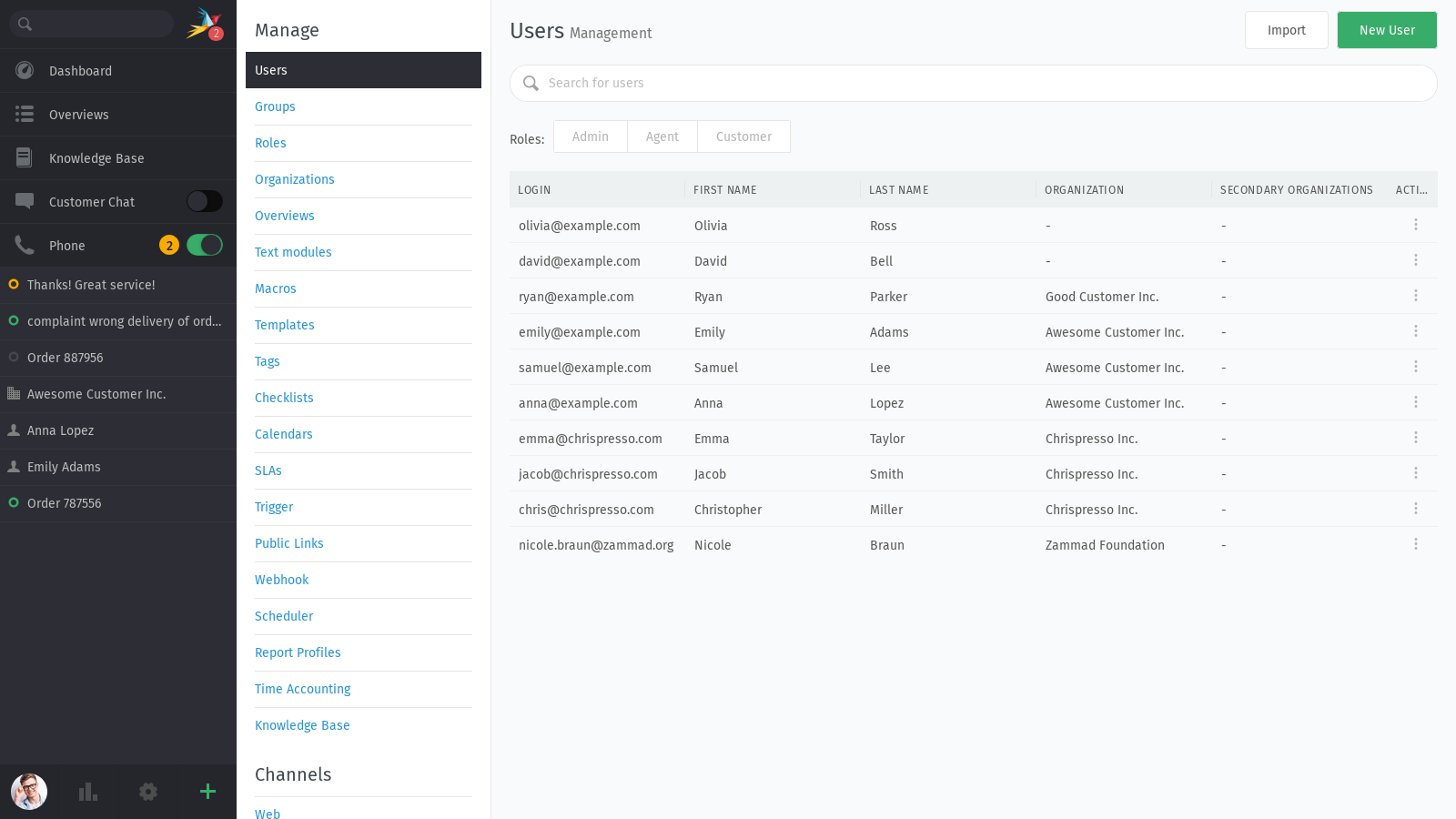
Click the
New Userbutton to open the New User dialog, or click on an existing user to edit.- Deleting users
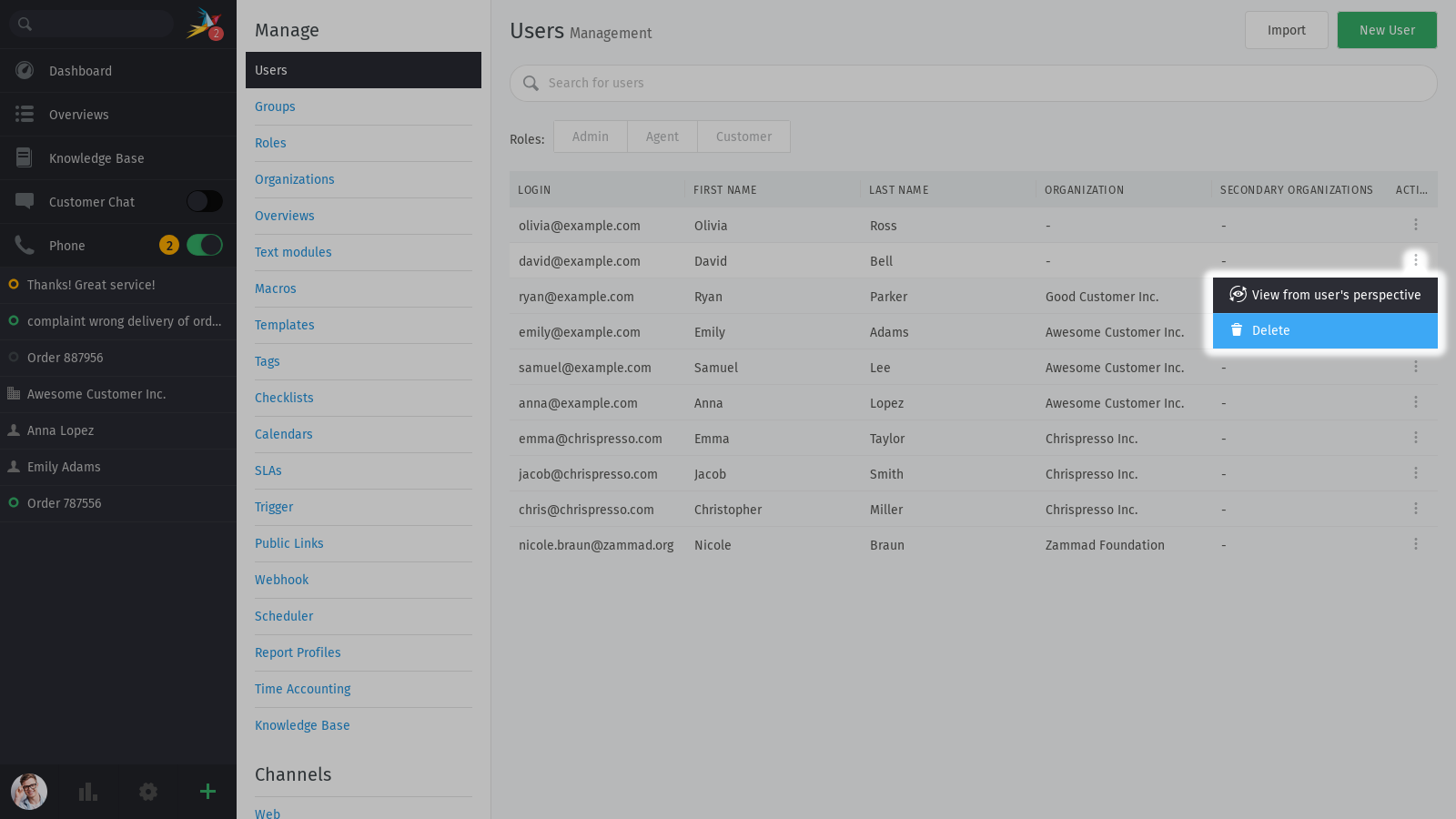
Use the ⋮ menu in the Action column to open the Delete User dialog.
Упозорење
Deleting a customer destroys all their associated tickets!
To learn more, check out the Приватност података section.
- Filtering the user list
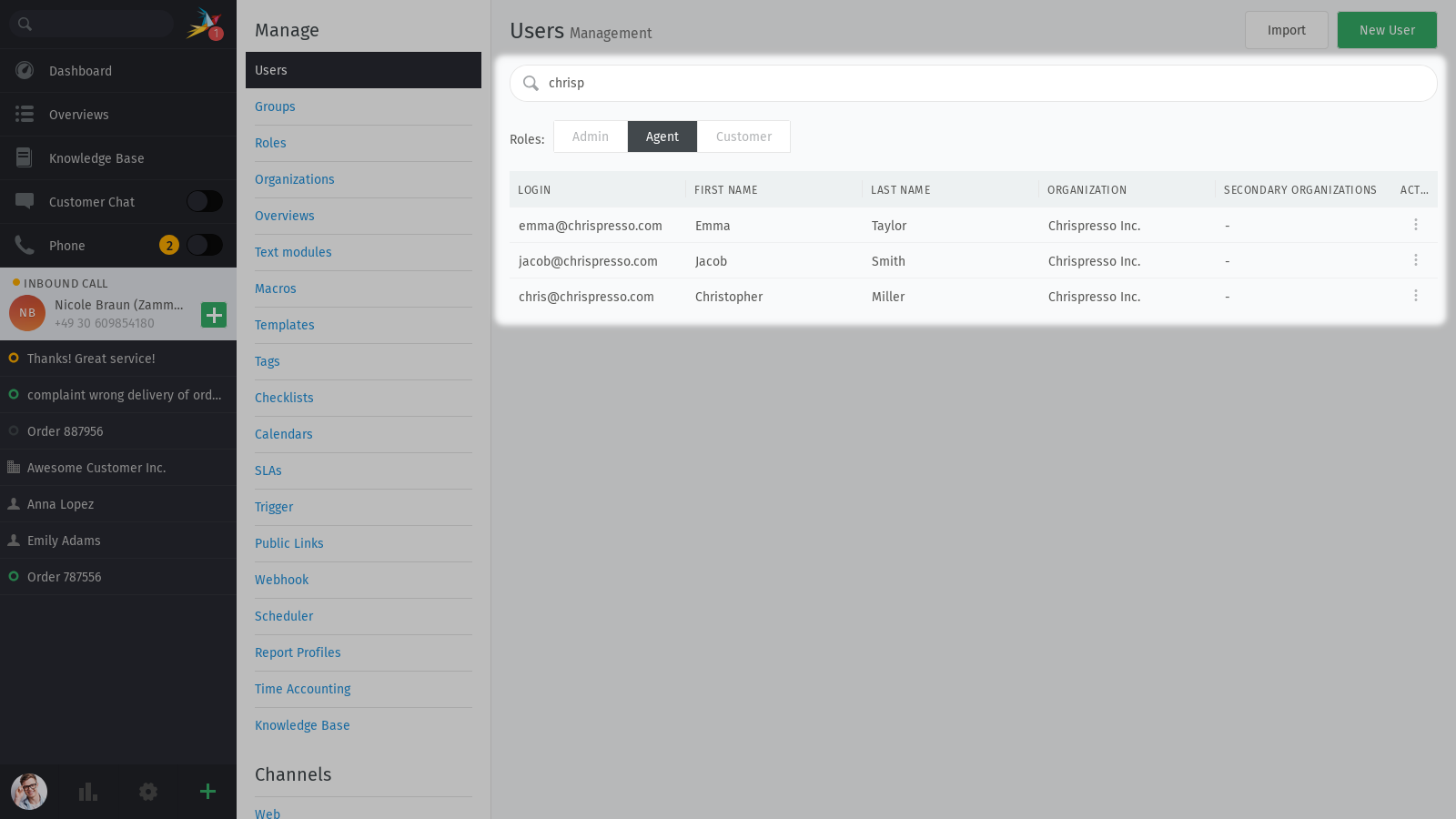
Use the Search for users bar and the Roles tabs to filter the list. You may search by name, email, or any other user attribute.
- Unlock locked user accounts
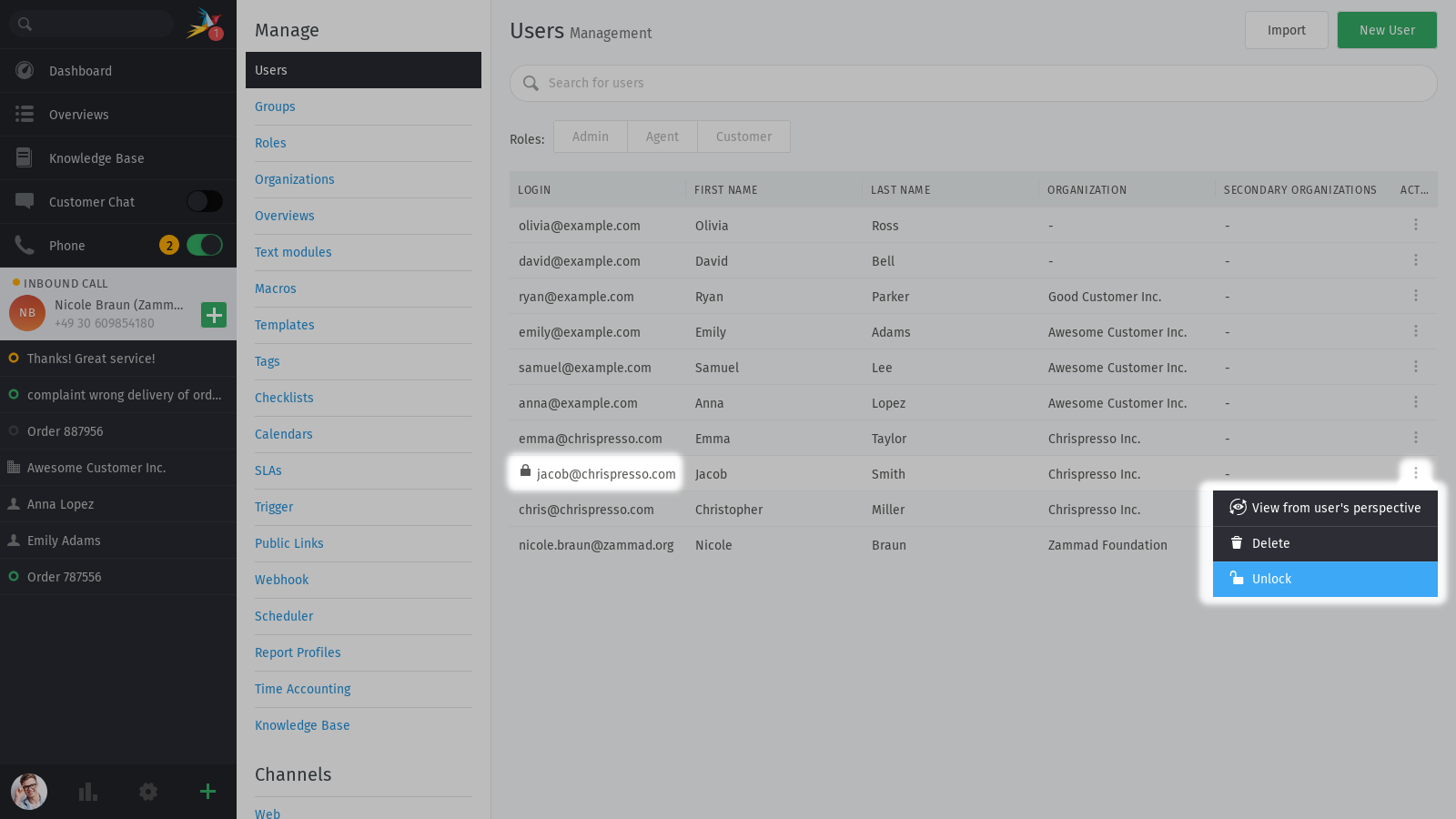
Use the ⋮ menu in the Action column to unlock accounts after too many failed logins. Locked accounts are indicated with a lock icon on the left side.
- Taking over a user’s session
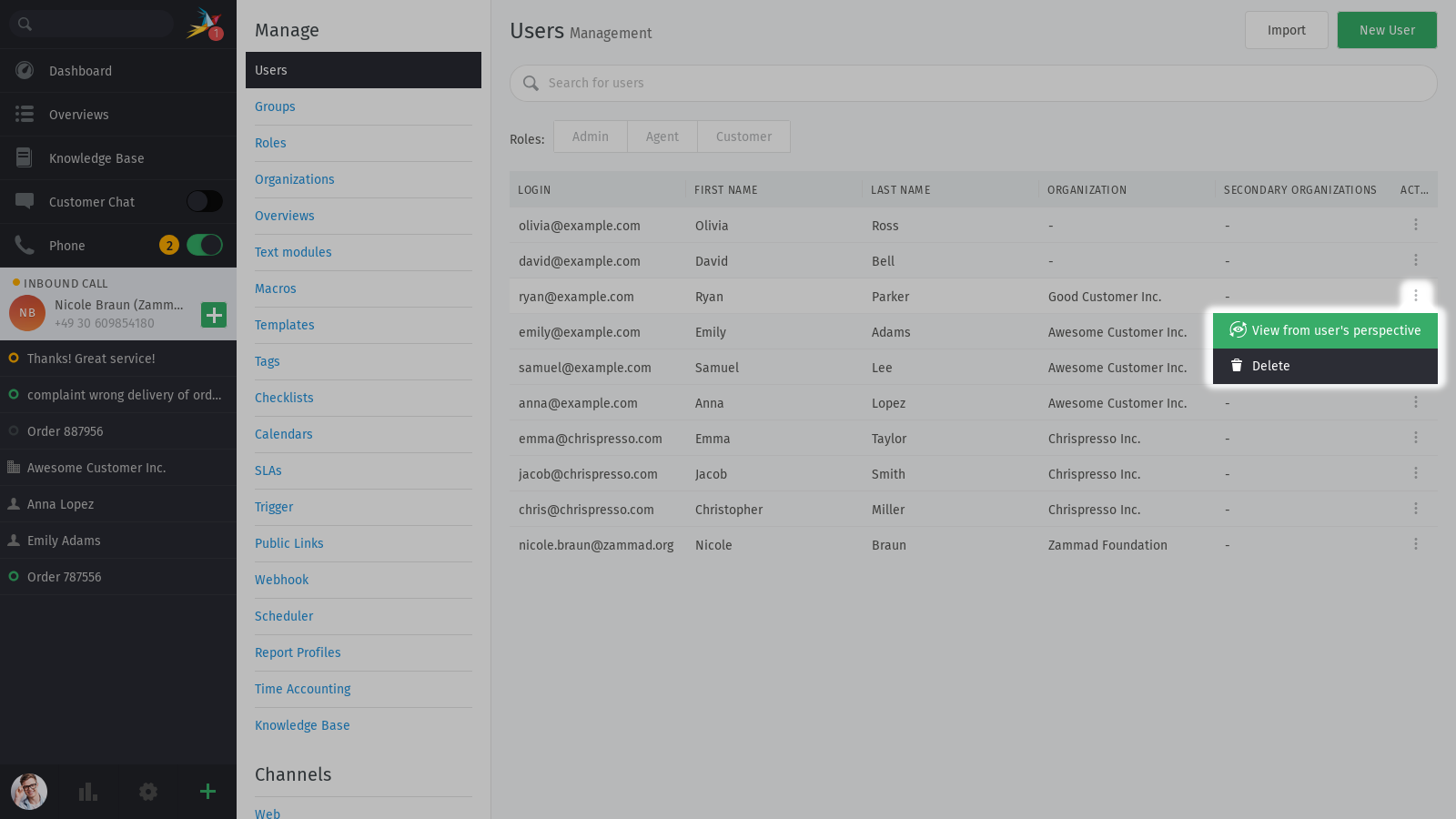
Use the ⋮ menu in the Action column to View from user’s perspective.
This button allows you to „hijack” another user’s session and confirm firsthand what they can and can’t do (or see) when they’re logged in.
Ово је посебно корисно када треба да проверите да ли сте исправно подесили прилагођене дозволе за кориснике који нису администратори.
When finished, use the
Back to my view ✕button at the top of the page. If you try to exit by logging out, the „hijacked” user session will be restored when you log back in.
Danger
With great power comes great responsibility.
This feature is not a simulation; entering this mode will boot the user from their session and any actions you take like responding to tickets, changing passwords or logging hours worked will actually be performed from the user’s account. On the other hand, if the user logs back in, you’ll be booted, too.
- Manage Two-Factor Authentication
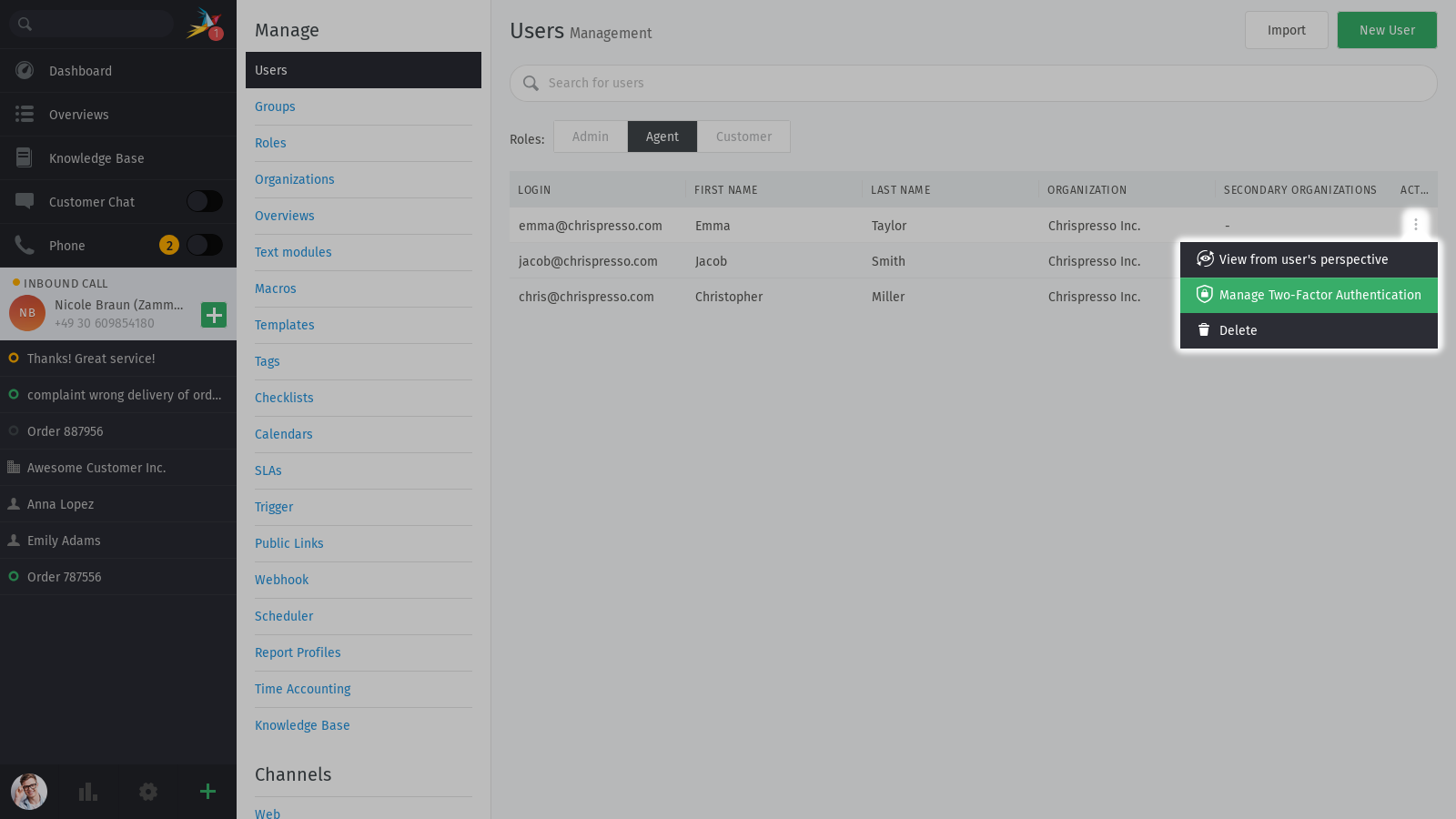
Use the ⋮ menu in the Action column to remove a user’s configured two-factor method.
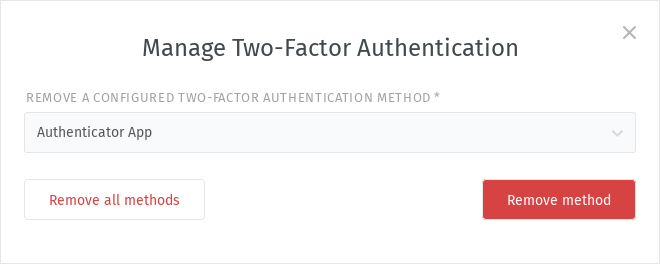
Могуће је уклонити једну или све корисничке подешене методе ако изгубе приступ. Потом могу поново сами да га подесе преко Аватар > Профил > Лозинка и аутентификација.